
.png)
.jpg)


Notebook + PC 4K60Hz Dual-Monitor Docking-Station KVM-Switch with 100W Charging, 2,5GB LAN



Notebook + PC 4K60Hz Dual-Monitor Docking-Station KVM-Switch with 100W Charging, 2,5GB LAN
An operating station with two monitors, keyboard/mouse and other peripers share a PC and a laptop.with 2.5GbE, 100W laptop charging, EDID Monitoir emulation, SDXC, 3×5Gbps USB-A, Type-C, TOSLINK 5.1.Perfect for the home office and office workstations.
- One Workspace for Laptop & Desktop: Instantly switch between a USB-C laptop and a desktop PC while sharing dual monitors, keyboard, mouse, storage devices, and audio equipment. Ideal for home offices, software development, engineering, creators, and hybrid workspaces.
- Laptop: Only one USB-C (from 3.2 Gen.2) to show 2 monitors, work with keyboard/mouse and further peripherals, have 2.5GB cabled ethernet, 100W laptop charging without extra charging adapter and optical or analogue audio out.
- Desktop-Computer: One HDMI + one DP + one USB 3.0 combined input for desktop computer.
- Two 4K@60Hz HDMI outputs: For dual-monitor KVM applications.
- Dual 4K Monitors with High Refresh Support: The USB-C input supports DP Alt Mode and MST, enabling dual 4K@60Hz displays on compatible Windows laptops. Supports high refresh resolutions including 4K@60Hz, 1440p@144Hz, and 1080p@240Hz for productivity and gaming.
- Full Docking Station Expansion: Replace multiple adapters with one compact dock featuring: 3 × USB 3.0 (5Gbps), 2 × USB 2.0, 1 × USB-C 5Gbps, SDXC card reader, 3.5mm headphone jack, TOSLINK optical audio, 2.5 Gigabit Ethernet, perfect for connecting SSDs, webcams, keyboards, printers, and more.
- Ultra-Fast 2.5 Gigabit Ethernet: The integrated 2.5GbE LAN port delivers faster wired networking than standard Gigabit connections for compatible USB-C laptops, making large file transfers, NAS access, cloud synchronization, and remote work smoother and more reliable.
- EDID Emulation for Stable Display Switching: Integrated EDID Emulation helps maintain monitor information during switching, reducing display re-detection, resolution changes, desktop icon movement, and window rearrangement for a seamless workflow.
- Automatic Wake-Up & One-Button Switching: Quickly switch computers using the front button or included wired remote controller. The dock can automatically wake a standby computer when switching, minimizing interruptions.
- Wired remote controller include.
- Optical 5.1 Audio Output: Built-in TOSLINK (S/PDIF) audio de-embedding outputs 5.1-channel surround soundto compatible AV receivers, soundbars, or home theater systems while maintaining video quality.
- Plug & Play Compatibility: No drivers required. Compatible with Windows, macOS, Linux, USB-C laptops supporting DP Alt Mode, and desktop PCs. Includes premium USB-C and USB cables for quick installation.
Package Contents
Before you start the installation of the product, please check the package contents:
- KVM Switch Docking Station x 1
- Power Adapter (20V DC 6A) x 1
- USB 3.2 Gen 2 Type-C Cable (1m) x 1
- USB 3.0 Type-A to Type-B Cable (1.5m) x 1
- Wired Button Switch x 1
- Quick Start Guide x 1 (only english)
Note: Extra needs cable (not include):
1x DP cabel from PC to kvm-switch
1x HDMI cable from PC to kvm-switch
Download User Guide directly from AV Access:


Specification
| Technical | |
| Input | Laptop: USB-C USB-C supports USB 3.2 Gen 2 standard, up to 20Gb/s, with support for: 100W Charging, USB 3.0 (up to 5Gb/s), and Dual 4K@60Hz video (MST) Desktop: DP + HDMI + USB-B DP port support for DP 1.2a (up to 4K@60Hz); HDMI port support for HDMI 2.0 (up to 4K@60Hz); USB-B port support for USB 3.0 (up to 5Gb/s). |
| Output | Two HDMI 2.0 outputs with HDCP 2.2 |
| Resolution Support | USB-C: Up to two 4K@60Hz outputs DP IN / HDMI IN/OUT: 1080P@240Hz/165Hz/144Hz/60Hz, 2560×1440@144Hz/120Hz/60Hz, 4K@60Hz |
| Audio Support | DP/HDMI: Fully supports audio formats in DP 1.2a/HDMI 2.0 specification, including PCM 2.0/5.1/7.1, Dolby TrueHD, Dolby Atmos, DTS-HD Master Audio, and DTS:X TOSLINK: PCM 2.0/5.1, Dolby Digital, and DTS 5.1 Headphone: Stereo |
| Peripheral and Expansion | USB-C x1: Up to 5Gb/s, 1.5A power output (only data and charging). USB-A x5: · 3x USB 3.0 ports (one of it as USB-C "only data/charging"), up to 5Gb/s, and 1A power output · 2x USB 2.0 ports, up to 480Mb/s SDXC card: Up to 104MB/s, maximum support 2TB. LAN: RJ-45 connector, support for 2.5Gb Ethernet performance (For USB-C Laptop only) |
| Control | Button Switch or included Wired button switch |
| General | |
| Power Supply | DC 20V/6A |
| Power Consumption | 98.12W (Video); 40.67W (Video + USB full load) |
| Dimensions (W x H x D) | 141mm x 47.5mm x 96mm / 5.55” x 1.87” x 3.78” |
| Product Weight | 0.86kg/1.90lbs |
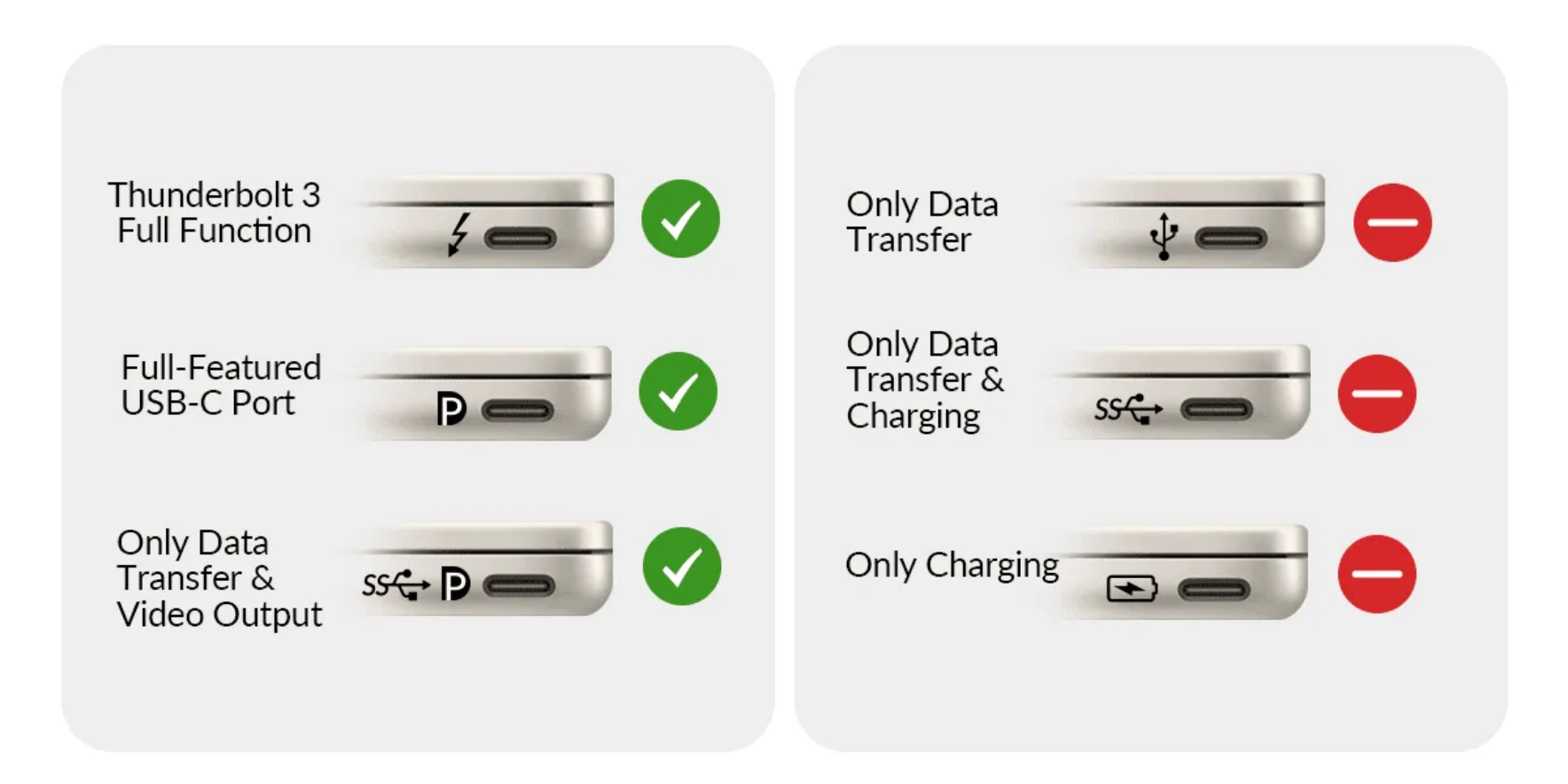 |
Compatibility Check
Simple Check for Seamless UseAttention: 1) Thunderbolt on the PC can display max. 1x 4K and 1x 1080p. 2) Thunderbolt on Mac can only display the identical image 1x 4K or 2x. |
FAQ:
Question: Some computers start the USB-C Monitors (Windows/ graphics cat problem) after restarting the computer:
Answer: Please click with “Win”+P on “PC screen only”, then “Extend”.
Question: What if my older notebook only has USB 3.1 (with DP Alt Mode).
Answer: Then, depending on the notebook performance, only a maximum of 1920x1080 or 2540x1440 are displayed.
Question: My notebook does not display a monitor via the USB-C to the KVM switch.
Answers:
a) Please use the supplied USB-C 3.2 Gen.2 cable, as other USB-C cables often only support charging and data transfer.
b) For inexpensive or older notebooks/tablets, the DP (DP Alt Mode) graphics support required for image output via USB-C is missing.
In this case, only switching to a power-starcelled notebook with USB-C 3.2 Gen.2 will help.
Question: It only works the cable LAN from the notebook or from the PC; depending on where I plug in the LAN cable.
Answer: The cable LAN function of the KVM switch refers only to the notebook. This is also represented by the encirclement of the two ports (RJ45 and USB-C).
The KVM switch requires a "own" LAN cable to the router. Can only be laid a cable, plug the LAN cable of the computer into an inexpensive 5-port GB Ethernet switch (we don’t have) and from there wire it into the PC and the KVM switch with short patch cords.
Question: Why does the device get warm during use?
Answer: Thermal conductivity through the housing: AV Access has designed the product so that the internal heat is conducted to the outer housing and the entire housing is used as a heat dissipation system. As a result, the surface temperature of the housing can be slightly higher.
Temperature and durability: The product has been developed according to industry standards and ensures that the surface temperature remains below 45° (113 °F), which is clearly within safe limits. In addition, the product has been subjected to high-temperature aging tests extended to its stability and longevity. This means that the performance and life of the product will not be affected.
Normal operation: It is normal for docking stations to generate some heat, especially when multiple devices are connected or perform tasks with high bandwidth. This is because the current is used to operate the connected peripherals and to maintain stable connections.
Heavy loads: Connecting multiple high-performance devices or using high-resolution outputs can increase the amount of heat generated.
If the temperature seems too high to you or you have special concerns, please let us know. We are committed to ensuring that our products meet your expectations and will be happy to help you if necessary.
--
B2B Product - Designed for use in a commercial environment.